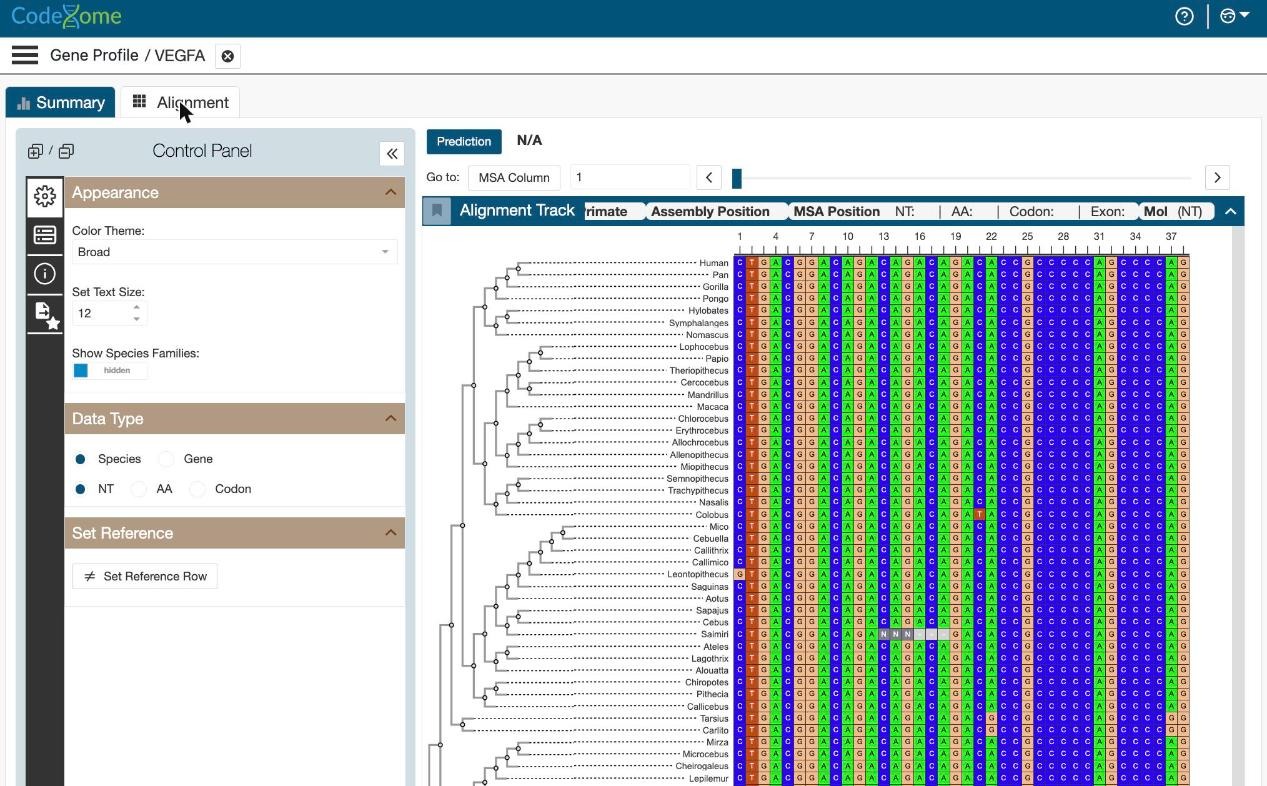
CodeXome’s Gene Profile tool lets researchers quickly look up any gene of interest and view its description, aliases, cross-references, and comparative genomics data. This guide walks through the process of running a gene search from start to finish, using screenshots from the live application.
Step 1: Open the Gene Profile Tool
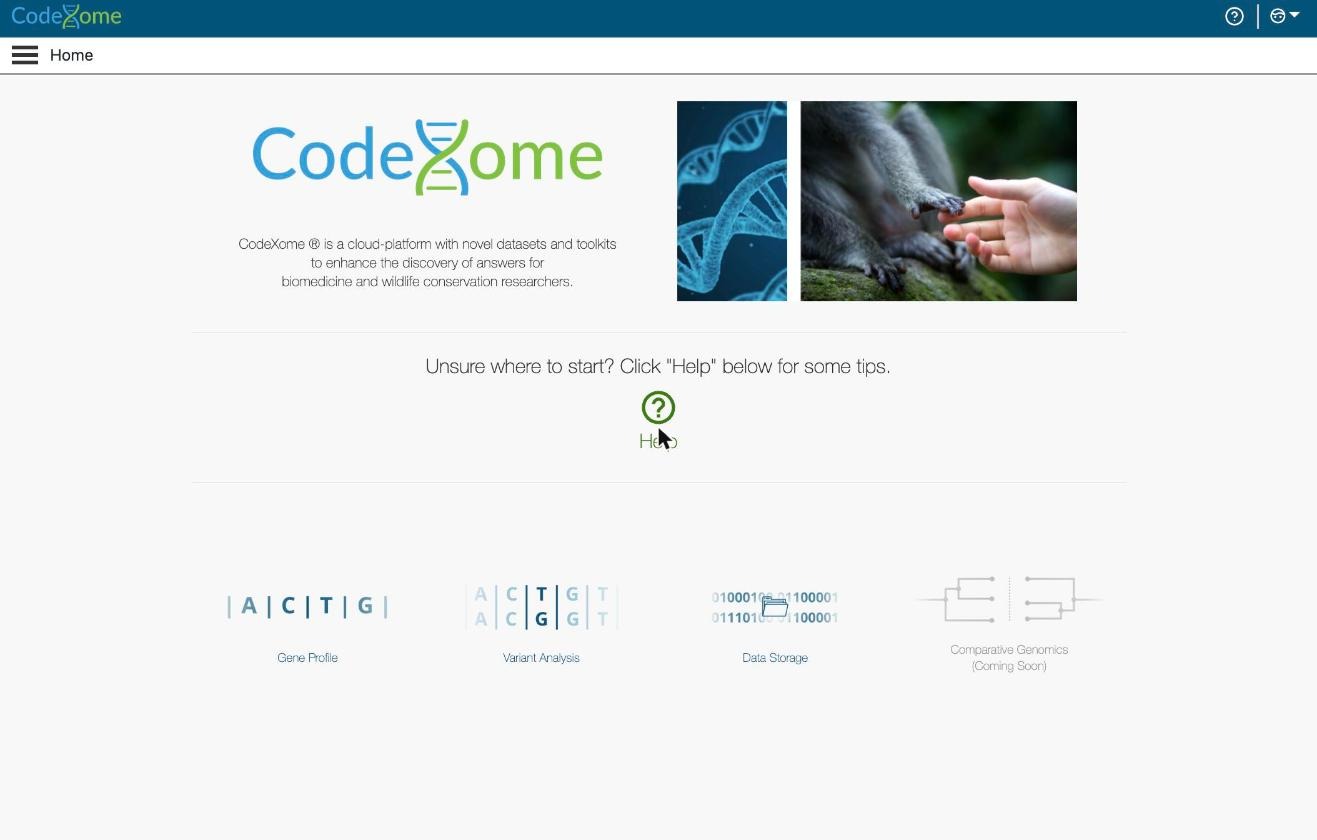
From the CodeXome home page, click the “Gene Profile” icon (the A|C|T|G icon) in the main dashboard. This opens the Gene Profile search screen where you can begin your query.
Step 2: Choose a Search Type
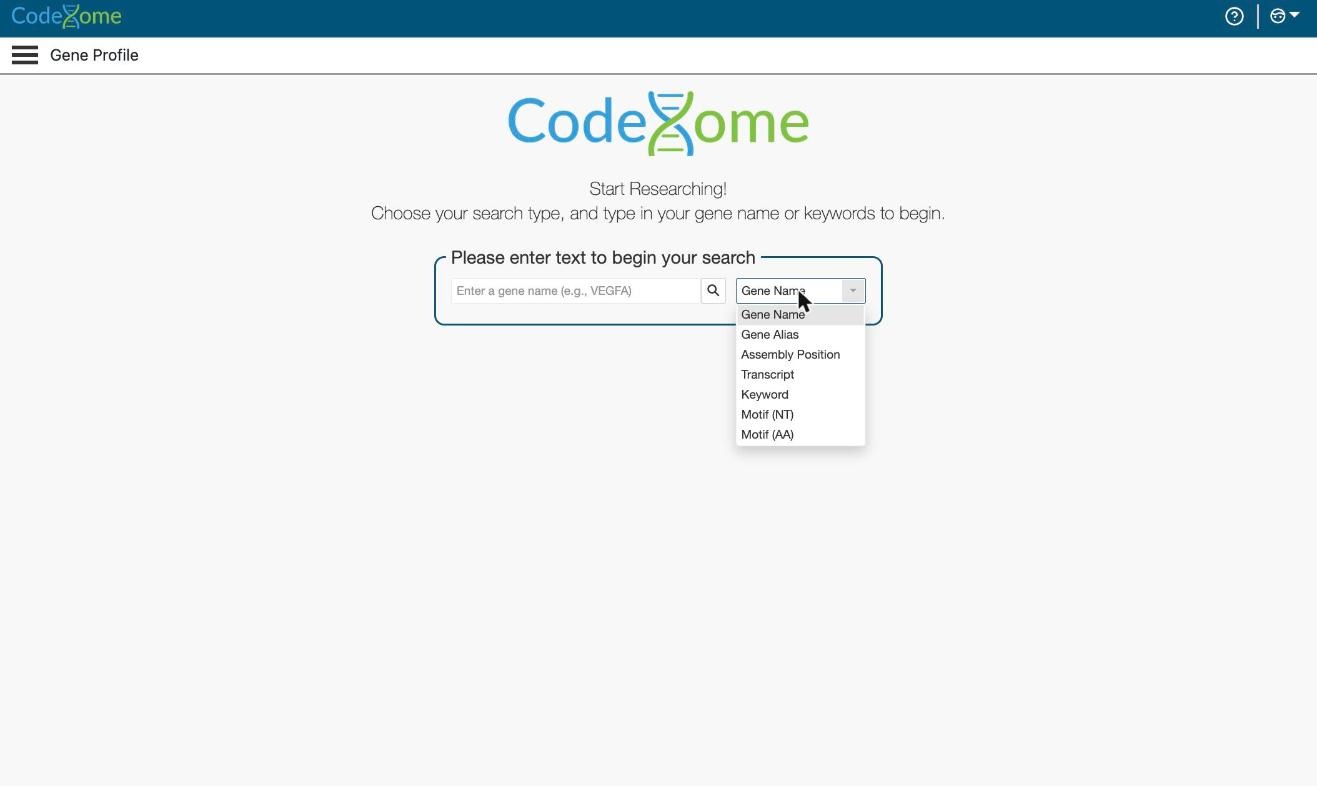
Before entering a search term, use the dropdown next to the search box to select how you want to search. Available options include Gene Name, Gene Alias, Assembly Position, Transcript, Keyword, Motif (NT), and Motif (AA). For most searches, “Gene Name” is the best starting point.
Step 3: Enter Your Gene and Select It
Type the gene name into the search box, for example VEGFA. CodeXome displays matching autocomplete suggestions as you type. Click the correct match in the suggestion list to run the search.

Step 4: Review the Gene Profile Results
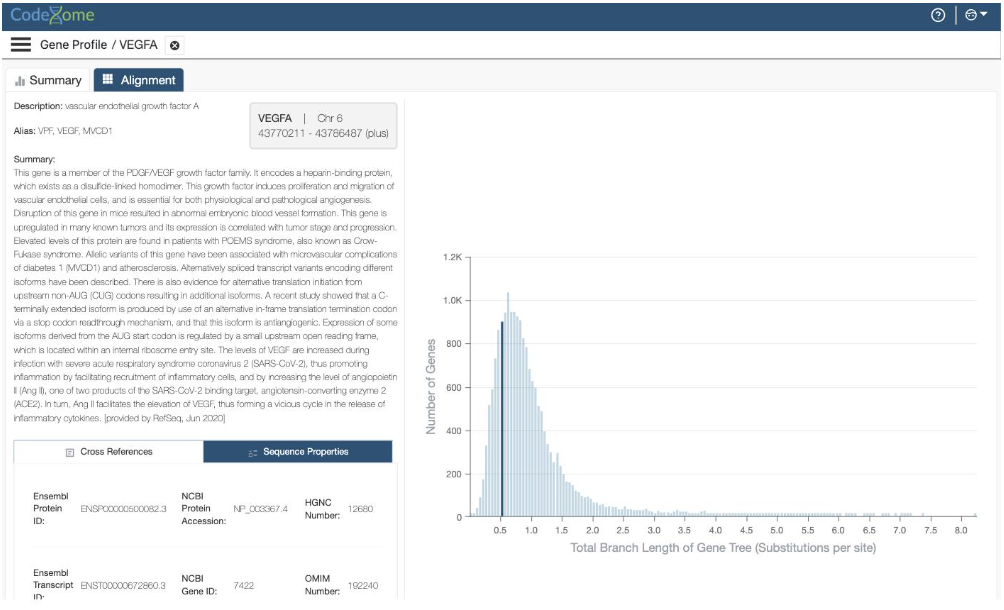
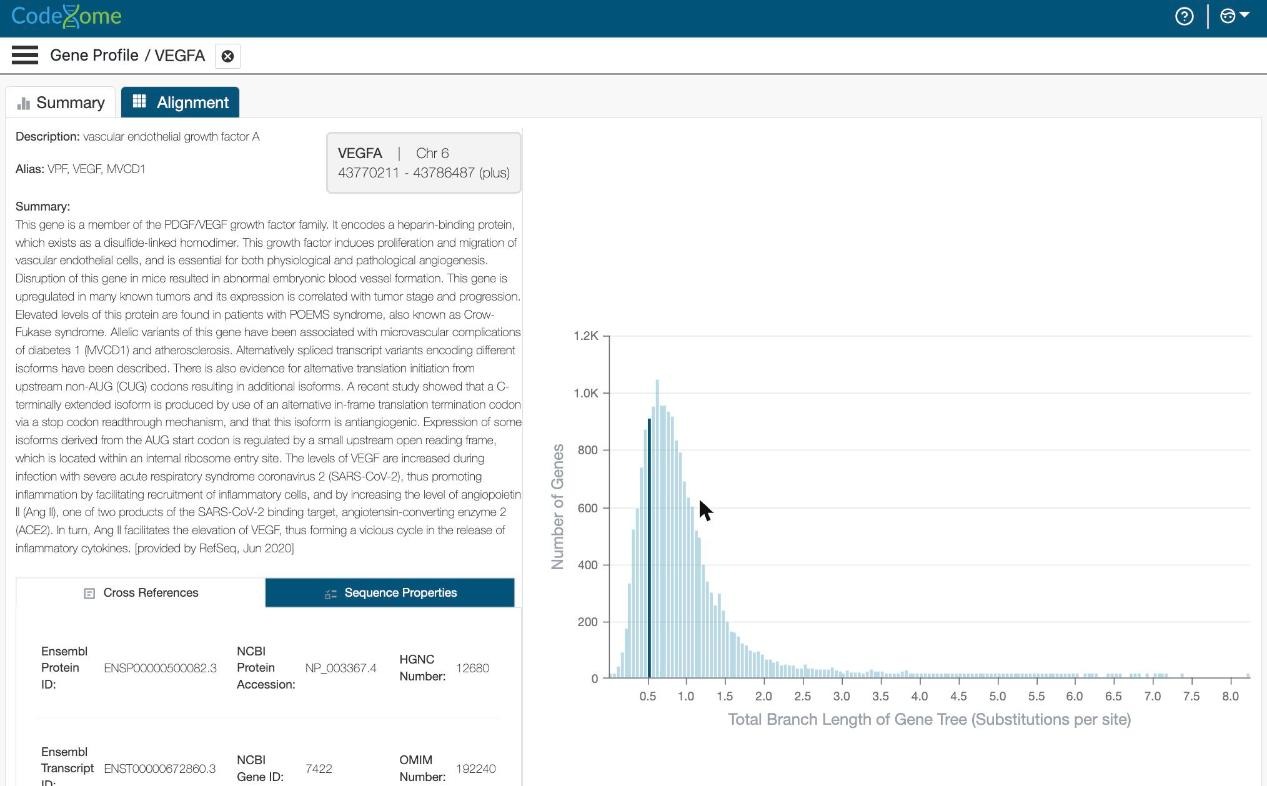
The results page opens on the Summary tab. It shows the gene’s full description, known aliases, and chromosome location at the top, followed by a written summary of the gene’s biological function. Below that, the Cross References and Sequence Properties panels list identifiers such as Ensembl and NCBI IDs, the HGNC number, and the OMIM number. On the right side of the screen, a comparative genomics chart plots total branch length across the gene tree. Use the Alignment tab above the results to view sequence alignment data for the same gene.
Tips for Effective Searches
- Gene Alias is useful when you only know an older or alternate name for the gene.
- Assembly Position is useful when you have chromosome coordinates rather than a gene name.
- Keyword search helps you find genes associated with a particular disease or biological process.
- Motif (NT) and Motif (AA) searches are useful when you’re searching by a nucleotide or amino acid sequence pattern rather than a name.
Understanding the Gene Profile
Once you open a gene’s profile, CodeXome organizes everything you need to know into a few clear areas. Here’s what each part of the page tells you and how to use it.
Gene Header: Name, Chromosome, and Coordinates
At the top of the results page, a highlighted box confirms exactly which gene you’re looking at: its official symbol, the chromosome it sits on, and its start and end coordinates in the genome, along with the strand direction (plus or minus). Check this box first to make sure you’ve landed on the right gene, especially if you searched by alias or keyword and were shown multiple matches.

Gene Summary and Reference Data
Below the header, the Summary paragraph explains what the gene does in plain language, drawn from curated reference sources. This is the fastest way to understand a gene’s function without leaving CodeXome. Underneath the summary, the Cross References and Sequence Properties panels list the identifiers researchers commonly need for the same gene, including Ensembl and NCBI accession numbers, the HGNC number, and the OMIM number, so you can quickly look the gene up in other databases.
Alignment Tab: Phylogenetic Tree and Species Comparison
Click the Alignment tab next to Summary to see how the gene compares across species. The left-hand Control Panel lets you adjust the color theme, text size, and species families shown, choose whether you’re comparing species or genes, switch between nucleotide (NT), amino acid (AA), or codon views, and set a reference row for comparison. The main panel shows a phylogenetic tree on the left and the aligned sequence data on the right, letting you see at a glance how conserved a stretch of DNA is across related species, which is useful for judging how biologically important a region is likely to be.